 Xiaohan-Tian
K.G.Studio — A Browser-based DAW with AI Assistant
New!
✦ K.G.One Music Studio is available now. ✦
K.G.One Music Studio is a fully local, open-source integrated platform built around K.G.Studio (this project). It bundles ACE-Step 1.5 for full-song generation, Foundation-1 for audio clip and MIDI loop generation, and python-audio-separator (UVR5) for stem separation — bringing GPU-accelerated AI music generation directly into your browser-based production workflow.
What is K.G.Studio?
K.G.Studio is a lightweight, modern DAW that runs entirely in the browser with K.G.Studio Musician Assistant at its core. It features realistic instrument playback via Tone.js samplers, a piano‑roll editor, track and region management with full undo/redo, project persistence to IndexedDB, a configurable settings panel, and an integrated AI assistant with tool execution.
K.G.Studio Musician Assistant is an AI assistance agent for harmony, arrangement, and note editing — but not full auto‑composition.

Note: Full-Song Generation Feature and Audio Clip Generation Feature requires K.G.One Music Studio integration.
Latest Updates
-
2026.05.15: Added browser-embedded AI models — two AI models now run entirely in the browser with no external service, no API key, and no K.G.One server required. The K.G.Studio Musician Assistant gains a new Local LLM (Browser) provider powered by Gemma 4 E4B via LiteRT-LM with WebGPU acceleration; the model is downloaded once and cached in OPFS for instant subsequent launches, with configurable context length (32 k / 64 k / 128 k tokens) and live inference performance statistics. Stem separation now also runs locally through a browser-embedded UVR-MDX-NET-Inst_HQ_3 ONNX model with WebGPU acceleration — open the Music Generator panel (✦ button), download the model once, and separate vocals from instruments entirely on-device. Both features require a WebGPU-capable browser (Chrome 113+ or Edge 113+) and a secure context (HTTPS or localhost). Recommended hardware: a GPU with at least 8 GB VRAM or a system with at least 16 GB unified RAM.
-
2026.05.10: Added staff notation (sheet music) view — the piano roll now offers a full standard notation mode. Switch between Piano Roll and Sheet Music views using the toggle in the piano roll toolbar. In sheet music mode, notes are engraved via VexFlow with automatic clef selection (treble or bass) based on the active instrument, key signature rendering, automatic beam grouping, ties across bar lines, and configurable quantization for note-value resolution. Enable Track Scope to render all MIDI regions on the track as a continuous score rather than a single isolated region.
-
2026.05.09: Added audio recording — record directly from your microphone into an audio track. A live waveform preview grows in real time as you record, and the region is committed to the timeline as a standard audio region when you stop. Added audio I/O device selection in Settings so you can choose your preferred microphone input and audio output device.
-
2026.05.08: Added MIDI automation — draw and edit pitch bend and MIDI CC curves (CC1 Modulation, CC2 Breath, CC7 Volume, CC11 Expression, CC64 Sustain) in an editable automation lane below the piano grid. Added track-level automation: each track now has a dedicated automation panel where you can view and edit the same curves directly on the timeline. Real-time MIDI controller input (pitch wheel, CC pedals) is recorded and played back with per-lane interpolation. Added the Event List Panel — a tabbed sidebar (Notes / Pitch Bend / Controller) for inspecting and inline-editing all events in the active MIDI region. Added region multi-select with lasso and bulk move/resize, and merge MIDI regions.

- 2026.05.02: Added audio track spectrogram visualization — audio regions now display a real-time spectrogram overlay in the track grid. Added Piano Roll hybrid mode: open the piano roll on a MIDI region while an adjacent audio region's spectrogram is shown as a reference layer, letting you edit MIDI notes against the visual shape of the audio. Added piano roll zoom in/out with viewport-position preservation so the view stays anchored to the current playhead. Added fine-tune region position: nudge regions by small increments for precise placement. Also added cross-component playhead scroll synchronization so the main grid and piano roll stay in sync during playback.
- 2026.04.29: Added Remix and Repaint to the K.G.One Music Generator panel (powered by ACE-Step 1.5). Remix lets you cover an existing audio region in a new style — select an audio region, describe the target style and optionally provide new lyrics, and ACE-Step will re-perform the song with the prompted instrumentation and feel. Repaint lets you surgically re-generate a specific section of a song — set a loop range on the timeline to define the repaint window, then describe what you want that section to sound like; the rest of the song stays untouched. Both tools support the same import workflow as the other K.G.One tabs: preview the result in the built-in player, drag it onto a track, or click Import Aligned to Source to automatically place it below the original region in a new track.
- 2026.04.24: Added K.G.One Music Studio integration! When K.G.Studio connects to a local K.G.One server, the K.G.One Music Generator panel (magic wand button ✦ in the toolbar) becomes available with three AI-powered tools: Full Song Generation (powered by ACE-Step 1.5 — generate full-length songs from text prompts), Clip Generation (powered by Foundation-1 — generate instrument clips and MIDI loops from text), and Stem Separation (powered by python-audio-separator — split any audio into vocals, instrumentals, and more). Generated audio and MIDI can be previewed instantly and dragged directly onto your tracks. K.G.One runs entirely on your own machine (Windows/Linux, CUDA GPU required); see the K.G.One repository for setup instructions.
- 2026.04.11: Migrated project storage from IndexedDB to OPFS (Origin Private File System) with a folder-based structure for better media file handling. Added audio track support with WAV/MP3 import, playback, looping, and non-destructive region trimming. Added bounce-to-WAV/MP3 export via offline rendering.
- 2026.04.05: Migrated the AI agent from XML-based tool calling to native OpenAI SDK function calling for improved reliability and compatibility. Added new LLM model options including GPT-5.4 series.
- 2026.01.23: Implemented seamless loop playback! Drag on the bar numbers to set loop range, or toggle loop mode with the Loop button in the toolbar. Loop playback uses
Tone.js's native looping for sample-accurate, gap-free looping. - 2025.12.21: Implemented MIDI keyboard support! You can now connect a MIDI keyboard and use it to play sounds. Please note that this feature may not work optimally in Safari and some other browsers that lack complete Web MIDI interface support.
- 2025.12.15: Added Intelligent Chord Assistant with functional harmony guidance (T/S/D). Hover over piano keys to see context-aware chord suggestions and create full chords with one click!
Project Status
K.G.Studio is an experimental project in early development. We're exploring the possibilities of integrating AI agents and LLMs into music production workflows — essentially building a "Cursor or Claude Code for DAW" experience.
This project investigates how AI-human collaboration can enhance creative music-making, from intelligent harmony suggestions to automated editing tasks. As an experimental platform, expect frequent changes, evolving features, and occasional instability as we push the boundaries of what's possible in AI-assisted music production.
Demo Videos
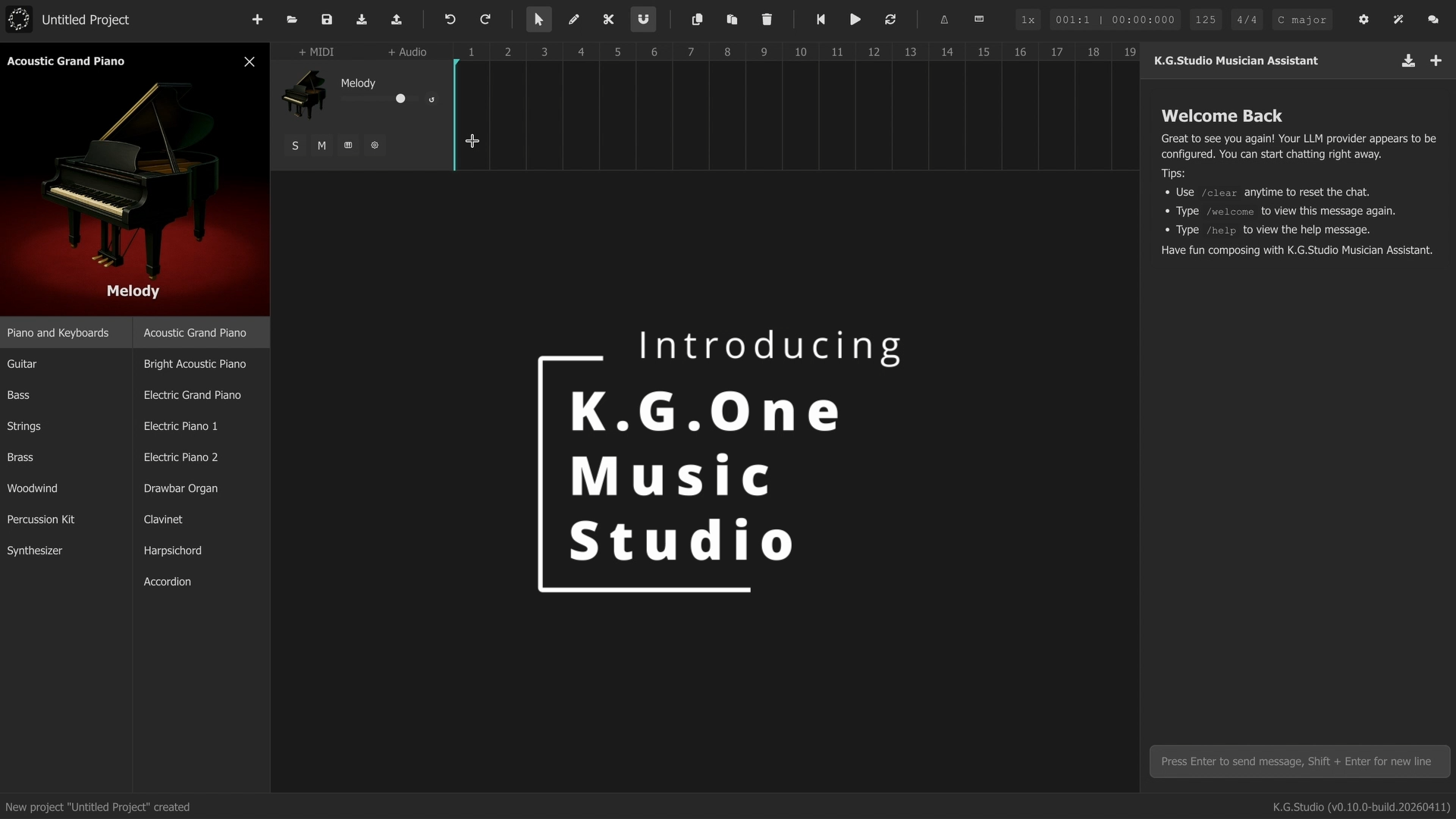
K.G.One Music Studio |
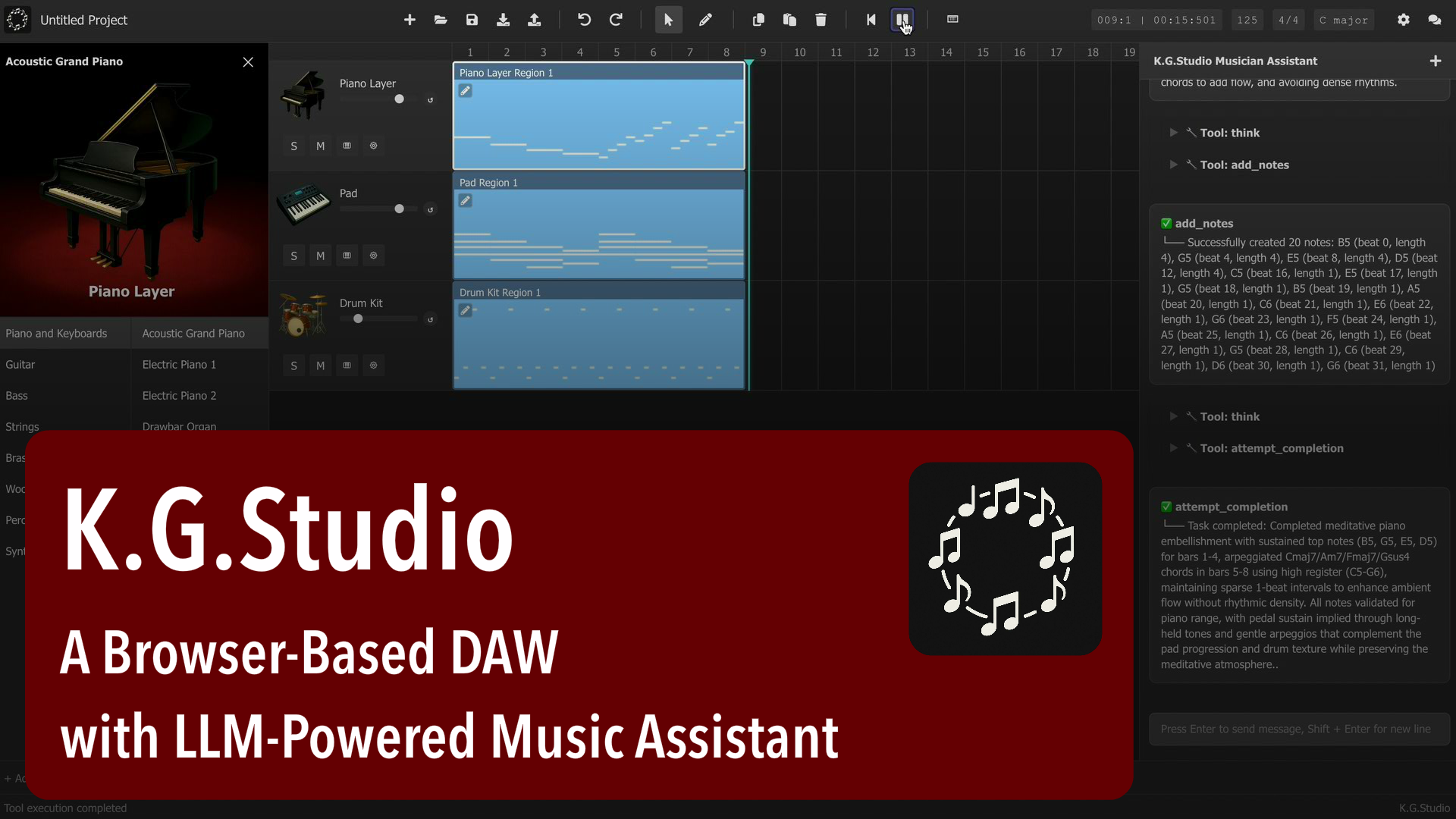
Short Demo (DAW Only) |
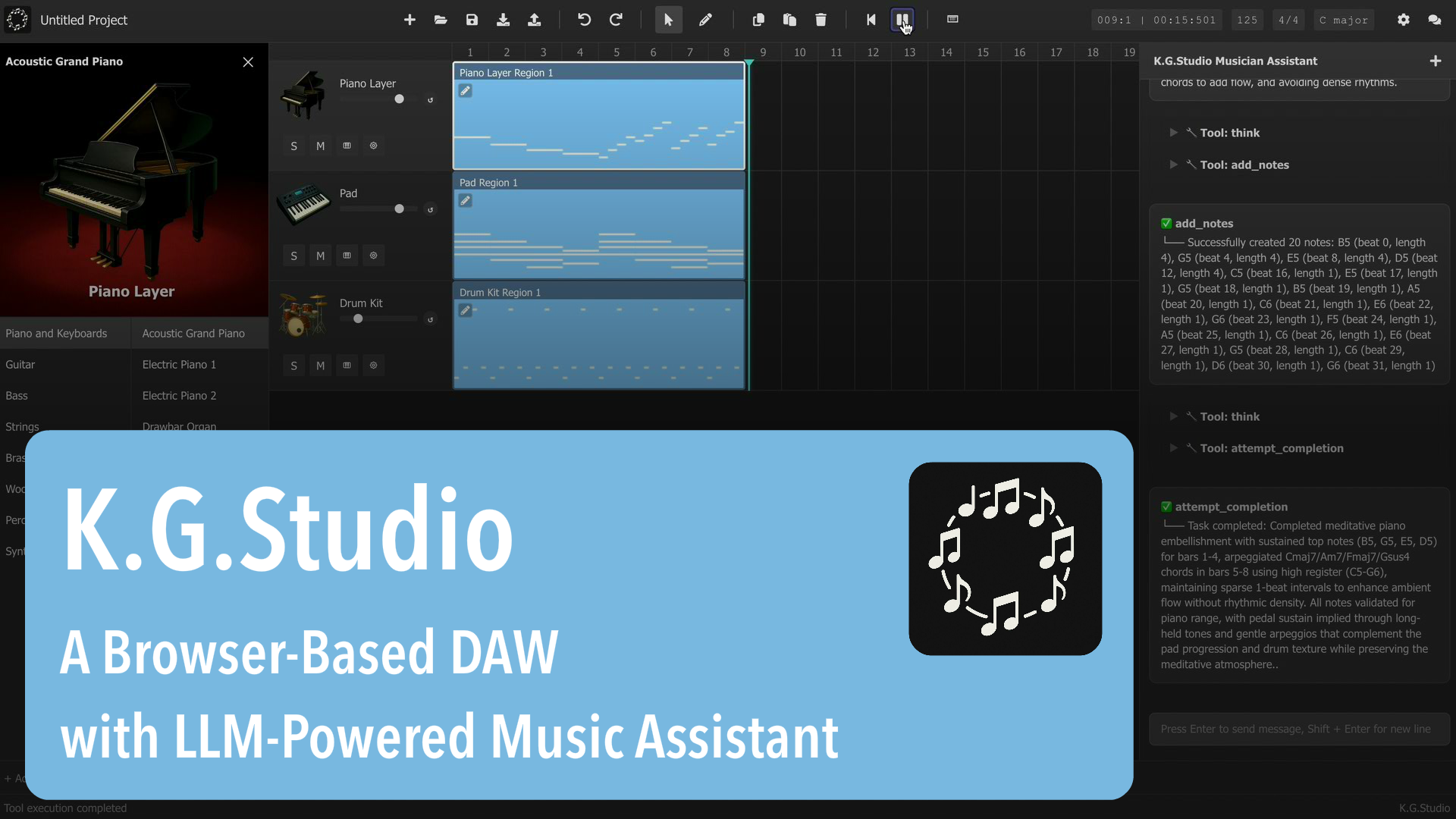
Full Demo (DAW Only) |
Quick Start
Setting up K.G.Studio Musician Assistant
- Click here to start using the app online: K.G.Studio (kgaudiolab.github.io/kgstudio)
- Click here to get a free OpenRouter API Key (you may need an OpenRouter account).
- In Settings ⚙️ → General → LLM Provider, select OpenAI Compatible.
- In OpenAI Compatible Server → Key, paste your key. (Note: on non‑localhost, your key isn't persisted by default for security; you can enable "Persist API Keys on Non-Localhost" in Settings to persist them, though this may increase XSS risk.)
- In OpenAI Compatible Server → Model, enter
openai/gpt-oss-120b:free. (Note: this is a free model; non‑free models may require billing; free model providers may collect your data, check the model page for details; this project is not affiliated with OpenRouter or any model provider.) - In OpenAI Compatible Server → Base URL, enter
https://openrouter.ai/api/v1.
Tips:
- You can also use the official OpenAI API, other OpenAI-compatible services, or a self-hosted LLM server (e.g., Ollama, vLLM). Note that model quality varies — not all models perform equally well for music editing tasks. For local hosting, we recommend
qwen3.5-35b-a3bas a good balance between generation quality and hardware requirements. - If you have an active subscription with OpenAI or another LLM provider, you can use CLIProxyAPI to run a local proxy server that routes requests through your existing subscription, without needing a separate API key.
Basic DAW operations
- Double‑click (or hold Ctrl/Cmd and click) on a track to create a region.
- Drag region edges to resize; drag the body to move.
- Click the small pencil at a region’s top‑left to open the piano roll.
- In the piano roll, double‑click (or Ctrl/Cmd+click) to create a note.
- Click to select; Shift+click for multi‑select; drag to box‑select.
- Drag note edges to resize; drag the note body to move selected notes.
- Use Snapping in the piano roll toolbar (top‑right) to quantize to grid.
Using K.G.Studio Musician Assistant
- Select the music region you want the assistant to work on, type your prompt in the chatbox; press Enter to send, Shift+Enter to insert a new line.
- The agent will automatically process your request and invoke tools to make modifications scoped to the selected region. It may take one or more turns to complete a task.
- Note that the AI could make mistakes, so you should always check the result and make adjustments if necessary. You can also use undo/redo to revert the changes.
- Click the "+" button or
/clearcommand to clear the chat history.
More details
You can find the detailed user guide here.
Highlights
- K.G.Studio Musician Assistant: Chat with the LLM‑powered K.G.Studio Musician Assistant AI Agent; it can automatically execute tools to make music edits.
- Intelligent Chord Assistant: Real-time chord suggestions based on functional harmony (Tonic/Subdominant/Dominant) with visual preview and one-click chord creation.
- Multiple LLM providers: OpenAI, Claude (via OpenRouter), Gemini (via OpenRouter), or OpenAI‑compatible (e.g., Ollama, OpenRouter).
- Track & Region editing: Add/reorder tracks, create/move/resize regions, copy/paste regions, and more.
- Piano roll: Create and edit notes with snapping/quantization support.
- Real instruments: Tone.js‑based Sampler with high‑quality FluidR3 soundfonts.
- Undo/Redo everywhere: Command pattern for tracks, regions, notes, and project properties
- Persistence with privacy: Save/load projects and configuration in your browser's IndexedDB (on your device).
- Export/Import: Export your project as a MIDI file, or import a MIDI file into your project.
- Settings: LLM provider, AI agent custom instructions, app behavior, and more.
For a deeper technical overview, see overview.md.
Getting Started
Or clone and run locally:
# Make sure you have Node.js >= 20.19.3 installed
# Clone the repository
git clone https://github.com/KGAudioLab/KGStudio {your-local-path}
cd {your-local-path}

# Install dependencies
npm install

# Run the development server
npm run dev
Configuration
K.G.Studio loads defaults from ./public/config.json (with an internal fallback) and persists user edits in the browser via ConfigManager + IndexedDB. IndexedDB is your browser’s own local database stored on your device; it does not leave your machine and is cleared if you clear this site’s data. Modify settings via the in‑app Settings panel.
- General
- LLM provider: OpenAI, or OpenAI‑compatible
- API keys and models for the selected provider
- Persist API Keys on Non-Localhost: Enable to persist API keys on non-localhost environments (security opt-in, not recommended for shared/production environments)
- OpenAI‑compatible base URL (for self‑hosted gateways)
- Soundfont base URL (CDN for instrument samples)
- Behavior
- Chatbox default open on startup
- Templates
- Custom instructions used by the AI assistant
Connectivity & Privacy
- K.G.Studio is fully client‑side. No first‑party servers are required to run the app.
- All projects, configuration, and UI state are stored in your browser’s IndexedDB (on your device).
- Network access is only used for:
- Downloading instrument sound samples from the configured soundfont CDN
- Communicating with the LLM provider you select (e.g., OpenAI or OpenAI‑compatible services)
- Outside of the two cases above, the app functions locally. If you block those endpoints, the app still loads; instrument playback and AI features will not function until network access is restored.
- For security, when running from a non‑local host we do not persist your API key in IndexedDB by default (to reduce XSS risk). You'll be prompted to enter it each time you start K.G.Studio. To opt‑in to persistence on non‑local hosts, enable "Persist API Keys on Non-Localhost" in Settings (not recommended for shared/production environments).
Using the App
You can find the detailed user guide here.
-
Tracks
- Add, rename, and reorder tracks from the track info panel.
- Change instrument using the instrument button (piano icon); adjust Solo (S), Mute (M), and Volume.
- Delete a track from the track’s settings menu (button to the right of the instrument).
-
Regions
- Create region: with the Pointer tool, double‑click; or hold Ctrl/Cmd and click. With the Pencil tool, single‑click.
- Move/resize: drag the body to move; drag edges to resize.
- Open Piano Roll via the small pencil at a region’s top‑left.
-
Piano Roll (MIDI notes)
- Tools: Select vs Pencil.
- Create notes: double‑click or Ctrl/Cmd+click (Select); single‑click (Pencil).
- Select notes: click; Shift+click for multi‑select; drag to box‑select.
- Move/resize: drag note body to move selected notes; drag edges to resize.
- Close the piano roll with X or ESC.
-
Intelligent Chord Assistant (Added 2025-12-15)
- Enable chord guide from the piano roll toolbar: select T (Tonic), S (Subdominant), or D (Dominant) function.
- Hover over any key to see context-aware chord suggestions highlighted in red, matching your selected key signature and mode.
- Press Tab to cycle through different chord voicings for the same harmonic function.
- Double-click (or Ctrl/Cmd+click) on a highlighted chord to create all notes at once.
- Chord length automatically matches your last edited note for consistent rhythm.
-
Snapping and Quantize
- Set snapping from the NO SNAP menu (top‑right).
- Quantize timing with Qua. Pos. (start) and Qua. Len. (length).
-
Playback & Playhead
- Back to beginning; Play/Pause from the toolbar.
- Set the playhead by clicking bar numbers in the main grid; in Piano Roll, click the header timeline (respects snapping).
- Change BPM, time signature, and key signature via the toolbar readouts.
Keyboard Shortcuts
- Main
- Play/Pause: Space
- Undo / Redo: Ctrl/Cmd+Z / Ctrl/Cmd+Shift+Z
- Copy / Cut / Paste: Ctrl/Cmd+C / Ctrl/Cmd+X / Ctrl/Cmd+V
- Save: Ctrl/Cmd+S
- Hold to create region: Ctrl/Cmd
- Piano Roll
- Tools: Select (Q), Pencil (W)
- Hold to create note: Ctrl/Cmd
- Snap: 1(None), 2(1/4), 3(1/8), 4(1/16)
- Quantize Position: 5(1/4), 6(1/8), 7(1/16)
- Quantize Length: 8(1/4), 9(1/8), 0(1/16)
AI Assistant
Using K.G.Studio Musician Assistant
- Make sure you have followed the previous section to set up the LLM provider.
- You can find the K.G.Studio Musician Assistant chatbox on the right. If you don't see it, you can click the Chat 🗨️ button on the toolbar.
- Select the region you want the assistant to work on, type your prompt in the chatbox; press Enter to send, Shift+Enter to insert a new line.
- The agent will automatically process your request and invoke tools to make modifications scoped to the selected region. It may take one or more turns to complete a task.
- Note that the AI could make mistakes, so you should always check the result and make adjustments if necessary. You can also use undo/redo to revert the changes.
- Click the "+" button or
/clearcommand to clear the chat history.
Configuring Your LLM Provider
Navigate to Settings ⚙️ → General → LLM Provider. Depending on your chosen provider, you will need to supply the appropriate API Key and, if applicable, a custom base URL (for non-official OpenAI-compatible services such as Ollama, OpenRouter, etc.).
Note: due to CORS limitations with some providers, Google Gemini and Anthropic Claude are currently supported via OpenRouter only.
Using OpenAI models
- Obtain an OpenAI API Key from OpenAI. You may need to create an account and add a payment method to generate an API Key.
- In Settings ⚙️ → General → LLM Provider, select OpenAI as your provider.
- Enter your API Key in OpenAI → Key.
- Select your preferred model from the OpenAI → Model dropdown. For a good balance between performance and cost, we recommend
gpt-5.4-mini. - Optionally, choose whether to enable Flex Mode in OpenAI → Flex Mode. Flex Mode offers discounted pricing, but may result in slower response times or server-side errors.
Using OpenRouter
OpenRouter is a platform that provides unified access to a wide range of language models—including free options—from various providers. This makes it easy to experiment and find the model that best suits your needs.
- Obtain an API Key from OpenRouter. Registration is required; for paid models, a payment method may also be necessary.
- In Settings ⚙️ → General → LLM Provider, select OpenAI Compatible as your provider.
- Enter your API Key in OpenAI Compatible Server → Key.
- Browse available models on the OpenRouter Models Page. Use the "Prompt Pricing" filter to identify free models.
Note: Each model provider may have different data retention and privacy policies. Please review these policies before use. - Enter your chosen model name in OpenAI Compatible Server → Model. Recommended model series include:
Anthropic: Claude Sonnet 4.6(anthropic/claude-sonnet-4.6: Link) — best balance of quality and cost for the Claude seriesQwen: Qwen3.5-35B-A3B(qwen/qwen3.5-35b-a3b: Link) — recommended open source modelQwen: Qwen3-Next-80B-A3B(FREE MODEL:qwen/qwen3-next-80b-a3b-instruct:free: Link) — recommended free modelOpenAI: GPT-OSS 120B(FREE MODEL:openai/gpt-oss-120b:free: Link) — recommended free model- Note: free model providers may collect your data; check the model page for details before use
- Note: free model availability changes frequently — for the latest free options, visit the OpenRouter Models Page and use the Prompt Pricing filter to find currently free models
- Input the base URL
https://openrouter.ai/api/v1OpenAI Compatible Server → Base URL.
About the agent and LLM providers
Currently, based on our evaluation, OpenAI’s open‑source models (gpt‑oss‑20b and gpt‑oss‑120b) are not yet compatible with the current agent implementation; support is planned.
For security, when using K.G.Studio from a non‑local host, API keys are not persisted in IndexedDB by default; you will need to input your API key each time you start K.G.Studio. To opt‑in to persistence on non‑local hosts, enable "Persist API Keys on Non-Localhost" in Settings (not recommended for shared/production environments).
K.G.Studio does not provide or host any of the models listed above, nor is it affiliated with any model provider. All data is stored locally on your device; K.G.Studio does not collect or transmit your data. You are solely responsible for any data you provide to third‑party model providers.
K.G.One Music Generator
Requires K.G.One Music Studio integration. The K.G.One Music Generator panel is only available when K.G.Studio is connected to a running K.G.One server. See the K.G.One repository for setup instructions.
The K.G.One Music Generator panel provides three GPU-accelerated AI tools for music generation and audio processing. Click the ✦ (magic wand) button in the toolbar to open it. The panel is mutually exclusive with the AI Assistant chatbox — opening one will close the other.
Note: The first time you use each tool, the server needs to load the corresponding AI model, which can take 60 seconds or longer depending on your hardware. Switching between tabs may also trigger a model reload.
Full Song Generation
Generate a complete, full-length song from a text description and optional lyrics. Powered by ACE-Step 1.5.
- In the Full Song tab, enter a Caption describing the desired style, mood, tempo, instrumentation, and structure in natural language. For example:
Genre: Eurodance, 90s dance-pop, upbeat electronic. Tempo: ~130 BPM. Instrumentation: driving kick drum, eurodance bassline... - Optionally, enter Lyrics. Use
[Intro],[Verse],[Chorus],[Bridge]tags to mark sections. Check Instrumental to skip vocals entirely. - Click Generate Song. A progress indicator shows the generation stage and percentage in real time.
- Once complete, a preview player appears. Drag it onto an audio track to import the song as a region.
- Dropping onto a MIDI track is not supported for full song generation.
- Advanced Settings (expandable): Inference Steps, Guidance Scale, Seed, and Thinking (CoT metadata generation).
Clip Generation
Generate short instrument clips and MIDI loops from text descriptions. Powered by Foundation-1.
- In the Clip tab, enter a Prompt describing the clip using comma-separated tags covering instrument family, sub-type, timbre, effects, length, BPM, and key. For example:
Gritty, Acid, Bassline, 303, Synth Lead, FM, Sub, High Reverb, 8 Bars, 140 BPM, E minor - Optionally, enter a Negative Prompt to steer the generation away from unwanted characteristics (e.g.
distortion, noise). - Select Bars: 4 or 8. The BPM and key signature are pre-filled from your project settings and can be adjusted in Advanced Settings.
- Click Generate Clip. Once complete, a preview player appears with a drag handle on the left and a download button on the right.
- To import: drag the player onto a track on the timeline.
- Drop onto an audio track to import as a WAV audio region (recommended).
- Drop onto a MIDI track to import as a MIDI region. Note that the MIDI is transcribed from the audio and may not be perfectly accurate.
- Advanced Settings (expandable): Note, Scale, BPM, Steps, CFG Scale, Seed (
-1for random), Sampler Type, Sigma Min/Max, and CFG Rescale.
Stem Separation
Split an existing audio region into individual stems (e.g. vocals, instruments, drums). Powered by python-audio-separator (UVR5).
- Select an audio region on the timeline before opening this tab. The selected region and its track name are shown at the top of the Separator tab. Only audio regions are supported — MIDI regions cannot be separated.
- Choose a Separation Model:
- Vocal and Instrument (Medium Accuracy) (
UVR-MDX-NET-Inst_HQ_3) — fast two-stem split (vocal / instrumental). - Vocal and Instrument (High Accuracy) (
MDX23C-8KFFT-InstVoc_HQ) — higher-quality two-stem split, slower. - Vocal, Drums, Bass, Guitar, Piano, and Others (
htdemucs_6s) — full six-stem separation.
- Vocal and Instrument (Medium Accuracy) (
- Click Separate Stems. If the selected region has a clip start offset or is trimmed, the audio is automatically sliced to match the region range before uploading.
- Once complete, each stem appears as a labelled preview player with a drag handle. You can preview each stem individually before importing.
- To import stems:
- Drag each stem player individually onto an audio track to place it where you want.
- Or click Import All Stems to Timeline to create one new audio track per stem automatically, positioned immediately below the source track and aligned to the same start beat as the original region. This is a single undoable operation.
Upcoming Features
Feature priorities might change.
1.0
- More instruments
- Automated testing (unit tests, integration tests, etc.)
- Intelligent Chord Assistant with functional harmony guidance (T/S/D)
- Support track control automations (e.g. sustain, volume, pan, etc.)
- Support MIDI control events (e.g. CC, pitch bend, etc.)
- Support WAV audio tracks
- Recording
- Event List
- Add support for OpenAI's open source models (
gpt-oss-20bandgpt-oss-120b) - Stuff notation
- K.G.One Music Studio integration
- Browser-embedded AI models (on-device LLM via Gemma 4 E4B; on-device stem separation via UVR-MDX-NET-Inst_HQ_3)
Post 1.0
- EQ
- Filters and effects
- Virtual MIDI device output
- Enhanced AI Music Assistant Agent
Help Needed
We're looking for contributors to help make K.G.Studio even better! Whether you're a developer, musician, or designer, your expertise can make a real difference.
How You Can Help
🎵 Musicians & Music Producers
- Test the DAW with real-world music production workflows
- Provide feedback on instrument quality and realism
- Suggest missing features that are essential for music creation
- Help improve the AI assistant's musical understanding
💻 Developers
- Implement new features from our roadmap
- Fix bugs and improve performance
- Enhance the Web Audio integration
- Work on AI assistant capabilities
🎨 UI/UX Designers
- Improve the user interface and workflow
- Design better visual feedback for music editing
- Create more intuitive interactions
Get Involved
Interested in contributing? We'd love to hear from you!
- Email us: kgstudio@duck.com
- Check our Issues: Browse open issues labeled with
help wantedorgood first issue - Join Discussions: Share ideas and feedback in GitHub Discussions
No contribution is too small — from reporting bugs to suggesting new features, every bit of help moves the project forward!
Disclaimer
K.G.Studio is an experimental project in early development. We're exploring the possibilities of integrating AI agents and LLMs into music production workflows — essentially building a "Cursor or Claude Code for DAW" experience.
This project investigates how AI-human collaboration can enhance creative music-making, from intelligent harmony suggestions to automated editing tasks. As an experimental platform, expect frequent changes, evolving features, and occasional instability as we push the boundaries of what's possible in AI-assisted music production.
K.G.Studio does not provide or host any of LLM models, nor is it affiliated with any model provider. All data is stored locally on your device; K.G.Studio does not collect or transmit your data. You are solely responsible for any data you provide to third-party model providers.
License
Licensed under the Apache License, Version 2.0, with additional terms (see LICENSE):
- No patent applications using this software or assets
- Attribution required when used in public/commercial products (“Powered by K.G.Studio”)
Third‑party notices (FluidR3_GM SoundFont, midi‑js‑soundfonts, VexFlow, prompt structure notes, Gemma 4 E4B, UVR-MDX-NET-Inst_HQ_3, MediaPipe, Meyda, web-audio-beat-detector, tonal, htdemucs_4s, onnxruntime-web, and demucs-web) are included in LICENSE.